Individual Course Support from DFI
If you would like assistance setting up your Canvas course fill out our Canvas course support form and one of our Instructional Support Associates (ISAs) will contact you to assist.
We can assist with:
- Importing content from the previous semester
- Utilizing one of the TC templates (see “About Our Templates” below)
- Answering any questions you might have about adding content to your Canvas course
-
Enable/Integrate additional tool
Fill out our Canvas course support form
Do-It-Yourself:
This simple 10-step Canvas Quickstart guide is a great resource for faculty who want to set up Canvas courses independently.
About our Templates
At DFI we have several Canvas course templates to choose from. Take a look at our template examples below to learn more.
Level 1: Universal template
This easy-to-use version of the template provides a TC-branded look and feel for your course homepage and includes a Tech Orientation module to help familiarize students with the learning platform and resources supporting their learning. Starting from Fall 2022, all TC courses are pre-populated with the Universal Template. Follow this instruction to enable the template in your course site.
Templates Features:
|
Syllabus |
|
|
Course Content |
|
| Communications |
|
| Grading |
|
How to Use This Level 1 Template?
Follow this simple 10-step Canvas Quickstart guide
Level 2: Entry level
This version is similar to Level 1 with the addition of a placeholder for the instructor's contact information, module thumbnails, and useful links to get support. To enable the template in your course site, contact DFI and we can assist you.
Templates Features:
|
Syllabus |
|
|
Front Page (Static Image Home Page) |
|
|
Course Content |
|
| Communications |
|
| Grading |
|
How to Use This Level 2 Template?
- Contact DFI for enabling this template in your course site
- Follow this simple 10-step Canvas Quickstart guide
- Populate home page
- [Optional] Replace the cover image in the Home Page welcome presentation
- Update Contact Me (name, room #, email, etc.)
- Update Office Hours
- Update thumbnails
- Replace week/session/module dates
- [Optional] Replace Home Page module thumbnail images
Level 3: Intermediate level
Level 3 includes all features of Level 2 yet the TC static banner is replaced with the Welcome presentation/sliding banner at the top and a navigation bar is added at the bottom to provide quick access to modules. To enable the template in your course site, contact DFI and we can assist you.
Templates Features:
|
Syllabus |
|
|
Front Page (Interactive Banner Home Page) |
|
|
Course Content |
|
| Communications |
|
| Grading |
|
How to Use This Level 3 Template?
- Contact DFI for enabling this template in your course site
- Follow this simple 10-step Canvas Quickstart guide
- Populate home page
- Update the homepage title
- Update Welcome Presentation
- Add course title, instructor name, and instructor department
- [Optional] Replace the cover image in the Home Page welcome presentation
- [Optional] Set a cover video in the Canvas Course Template Welcome presentation
- Add course description
- Add faculty description
- [Optional] Replace a faculty picture in the Canvas Template
- Edit the course schedule
- Update Contact Me (name, room #, email, etc.)
- Update Meeting Times. Note: Include zoom link if using a recurring link.
- Update Office Hours
- Update Getting Started
- [Optional] Upload a course introduction video on the Home Page with the Canvas template
- [Optional] Embed a Padlet for student introduction on the Home Page with Canvas Template
- Update thumbnails
- Replace week/session/module dates
- [Optional] Replace Home Page module thumbnail images
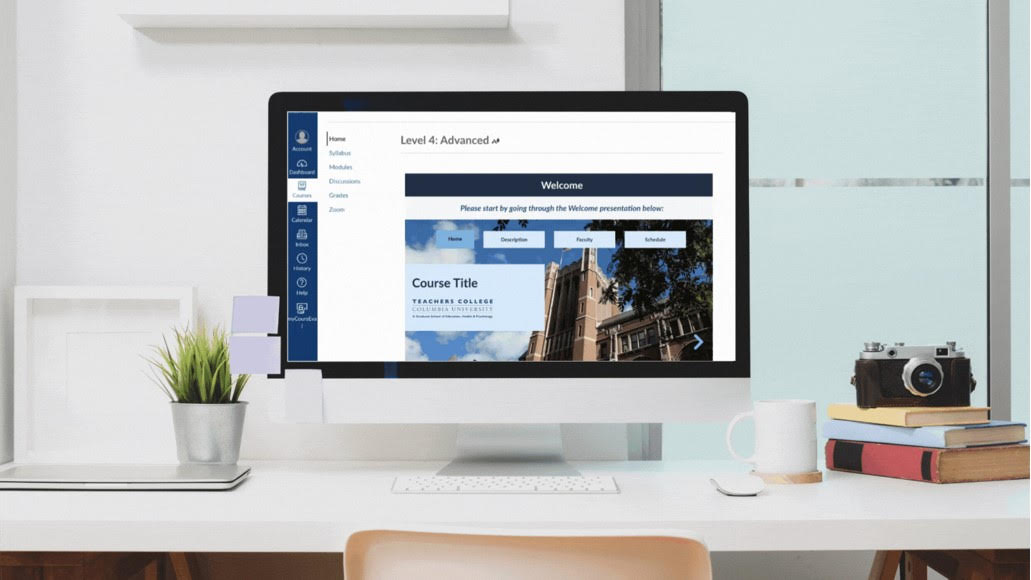
Level 4: Online Course Template
This template is used for online course sites.
This is the most advanced level which has all features of Level 3 yet the module thumbnails open a module overview page laying out all learning activities and materials. To enable the template in your course site, contact DFI and we can assist you.
Templates Features:
|
Syllabus |
|
|
Front Page (Interactive Banner Home Page) |
|
|
Course Content |
|
| Communications |
|
| Grading |
|
How to Use This Level 4 Template?
- Contact DFI for enabling this template in your course site
- Follow this simple 10-step Canvas Quickstart guide
- Populate home page
- Update the homepage title
- Update Welcome Presentation
- Add course title, instructor name, and instructor department
- [Optional] Replace the cover image in the Home Page welcome presentation
- [Optional] Set a cover video in the Canvas Course Template Welcome presentation
- Add course description
- Add faculty description
- [Optional] Replace a faculty picture in the Canvas Template
- Edit the course schedule
- Update Contact Me (name, room #, email, etc.)
- Update Meeting Times. Note: Include zoom link if using a recurring link.
- Update Office Hours
- Update Getting Started
- [Optional] Upload a course introduction video on the Home Page with the Canvas template
- [Optional] Embed a Padlet for student introduction on the Home Page with Canvas Template
- Update thumbnails
- Replace week/session/module dates
- [Optional] Replace Home Page module thumbnail images
Frequently Asked Questions
Choose a topic to view related frequently asked questions.
If you are looking to add a CA/TA to a course, you will need to contact the Service Desk at servicedesk@tc.columbia.edu. Please note that TC’s policy requires anyone added to a course as a CA/TA, or Course Tech Specialist must to be hired by the College for that work. For more details, please see the Student Access to Learning Management System Courses policy.
- Watch this 5-minute video that explains how to add resources to your Course Resource List.
- For additional information about adding to our Course Resource list, you will need to contact the Library
- If the student is auditing the course, you can add the student by following these steps.
- If you need to add a student who will receive a grade for the course, that student will need to contact the registrar at registrar@tc.columbia.edu to make sure they have registered.
*Note: It can take up to 48 hours for students to be added to a Canvas course once they have registered
- Before adding a Padlet, ensure you are logged into your TC Padlet account by using the URL: https://teacherscollege120.padlet.org/auth/login
- Then, you can follow these steps to:
- To schedule support ahead of time for classroom technology, you will need to fill out a Media Services request form
- If you need support while you are in the classroom, you can use a classroom phone to dial extension 3300 and press option 1. To use your cell phone, dial (212)678-3300 and press option 1.
- If you are the instructor of a course, you can copy that course into another course in which you are the instructor
- If you weren’t the previous instructor and still need the course copied, you will need to get permission from the instructor and forward that permission to servicedesk@tc.columbia.edu
- Turnitin is automatically available for all faculty in Canvas. To create a Turnitin assignment, follow these steps
- If you want to use Turnitin to submit an individual paper, follow these steps
To extend access to a past course, you can follow these steps
- Your course may not appear on your Canvas dashboard due to the course not being selected as a favorite within your dashboard. Select the course you want to appear on your Canvas dashboard
- If your course is still not appearing within Canvas, check the TC Course Schedule. If you see your name listed as the instructor for a course, but don’t see that course in Canvas, contact DFI.
- If your name does not appear on the TC Course Schedulefor a specific course, please contact your department’s DAA.
Instructional Support of TC Staff Development

DFI offers instructional support for administrative offices and departments looking to create effective and engaging training programs and courses for members of the TC community. Our team can assist with all aspects of course development, including project planning, course design, content development, and technology integration, ensuring that your programs align with TC standards and are inclusive, effective, and engaging. To inquire about our support and services, please follow the guidelines below to submit your request.
While we are committed to providing the highest level of assistance possible, the specific scope of our involvement will depend on various factors such as ongoing projects, team capacity, and existing commitments. We strive to accommodate all inquiries to the best of our ability, and our team will work closely with you to discuss and tailor our support to align with your needs and objectives within the constraints of our available resources.
Services
Course Design
Our instructional designers can assist at any stage of the development process. Whether you're just starting out and need help brainstorming ideas, refining your vision, and creating a course outline, or if you're further along in the process and require assistance with project planning and course development, we can help.
Content Development
Our instructional designers can consult and support with making your instructional content more visually appealing, interactive, and engaging for your audience. In the initial consultation, we can share examples with the required time and effort to inform your decisions about how you want to proceed. Check out our DFI Media Portfolio, a collection of multimedia content developed for online programs at Teachers College in the past. These artifacts may inspire you to think creatively and also inspire ideas for your course.
Technology Integration
Our team can provide consulting and assistance with integrating innovative and effective technology tools that are available at TC, to enhance the delivery and learning experience of your program. If a new tool is necessary, we'll liaise with TCIT, OASID, and OGC to vet the tool, ensuring that it meets TC's high standards for data security, privacy, and accessibility.
Media Production
Our Media Team is equipped to support you to create high-quality audio and video assets for your program. Check out our DFI Media Studios webpage for more details
Process & Estimated Timeline
To ensure effective collaboration and project completion within a reasonable timeframe, we have established the following timeline. The estimated duration depends on project complexity:
- Small Projects: One semester (approx. 4–5 months) to develop
- Large Projects: One academic year (approx. 9–12 months) to develop
Timely input and decision-making from the requesting department are essential to staying on track.
Submit a request to get started. Please choose General Inquiry category and include a brief description of the project, the intended audience, and what you are looking to get help with.